Step 1
Machine-Ready Briefs
AI translates unstructured needs into a technical, machine-ready project request.
We use cookies to improve your experience and analyze site traffic. You can accept all cookies or only essential ones.
 Bilarna
Stop browsing static lists. Tell Bilarna your specific needs. Our AI translates your words into a structured, machine-ready request and instantly routes it to verified Image to 3D Conversion experts for accurate quotes.
AI translates unstructured needs into a technical, machine-ready project request.
Compare providers using verified AI Trust Scores & structured capability data.
Skip the cold outreach. Request quotes, book demos, and negotiate directly in chat.
Filter results by specific constraints, budget limits, and integration requirements.
Eliminate risk with our 57-point AI safety check on every provider.
Verified companies you can talk to directly
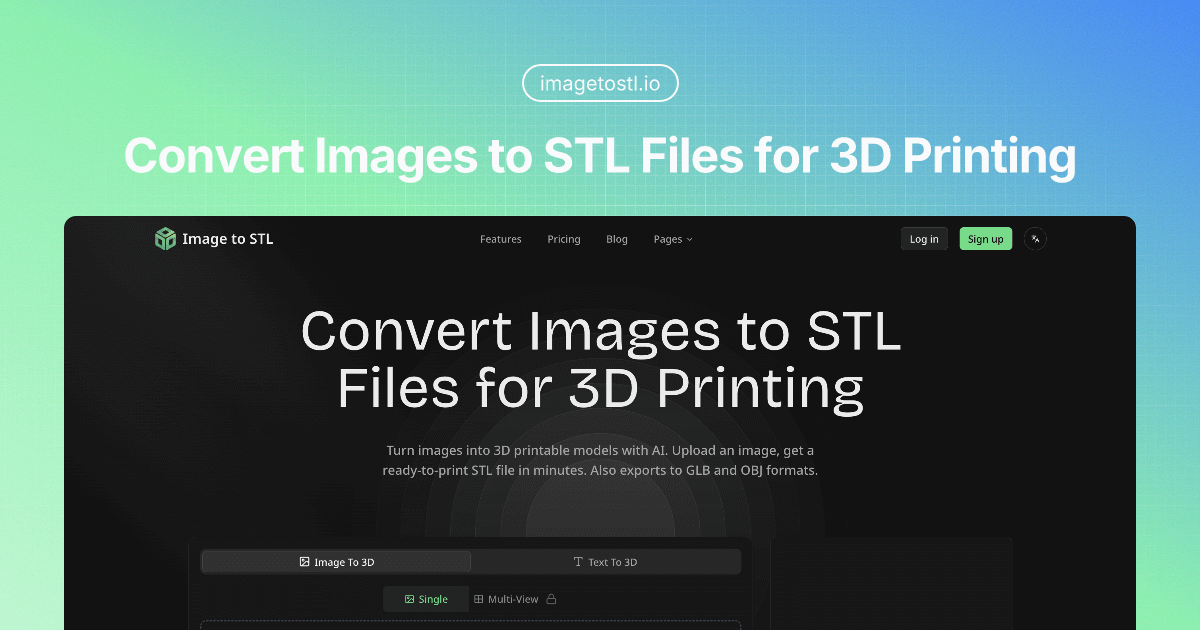
Convert image to STL files for 3D printing. AI-powered image to 3D converter creates printable models in minutes. Export to STL, GLB, OBJ. Free to try.
Run a free AEO + signal audit for your domain.
AI Answer Engine Optimization (AEO)
List once. Convert intent from live AI conversations without heavy integration.
Image to 3D model conversion is the process of transforming a two-dimensional photograph or illustration into a fully realized three-dimensional digital asset. This is achieved through photogrammetry, depth mapping, and advanced artificial intelligence algorithms that interpret spatial data. The resulting 3D models enable realistic visualization, product prototyping, and seamless integration into virtual environments for business applications.
High-quality, overlapping photographs are captured or selected from multiple angles to provide sufficient visual data for the conversion algorithm.
Software analyzes image data points to calculate depth, reconstruct geometry, and generate a textured mesh representing the object's 3D form.
The raw 3D mesh is cleaned, optimized for the target platform, and exported in standard formats like OBJ, FBX, or STL for deployment.
Create interactive 3D product views from standard photos, allowing online customers to rotate and examine items in detail, boosting engagement and conversion rates.
Generate 3D building models and interior spaces from architectural photographs for client presentations, virtual tours, and renovation planning.
Rapidly prototype and produce 3D environment assets, props, and characters from concept art or reference imagery for game development and film production.
Reverse-engineer physical parts or create digital twins of components from photographs for quality control, inventory, or custom fabrication workflows.
Digitize artifacts, sculptures, and historical sites into precise 3D models for archival, educational, and virtual museum experiences accessible worldwide.
Bilarna ensures every Image to 3D Model Conversion provider is rigorously screened using a proprietary 57-point AI Trust Score. This evaluation covers technical expertise in photogrammetry software, portfolio quality, client delivery reliability, and data security compliance. Continuous performance monitoring on the platform guarantees you connect with verified specialists who meet strict professional standards.
Costs vary significantly based on model complexity, required accuracy, and output format. Simple models may start from $50-$200, while highly detailed, textured assets for production can range from $500 to several thousand dollars. Pricing is usually project-based or per model, with factors like source image quality and turnaround time influencing the final quote.
High-resolution, well-lit photographs taken from multiple overlapping angles around the subject yield the best results. Images should have minimal lens distortion, consistent lighting, and a plain background. For optimal reconstruction, providers typically require a sequence of 20-100 photos covering all sides, top, and bottom of the object.
Turnaround time depends on model complexity and provider workload. A basic model can be generated within 1-3 business days, while intricate, high-polygon models with detailed textures may require 1-2 weeks. The process includes processing time, manual refinement, and quality assurance checks before final delivery.
Photogrammetry uses geometric principles to calculate 3D structure from multiple 2D photos, requiring many overlapping images. AI-based conversion can often work with fewer images, learning from vast datasets to predict depth and geometry, sometimes even from a single photo, though multi-view inputs still produce superior accuracy.
Providers typically deliver models in standard industry formats like OBJ, FBX, STL, or glTF. The choice depends on your end-use: OBJ/FBX for animation and gaming, STL for 3D printing, and glTF for web and AR/VR applications. Most specialists can export to your specified format upon request.
Yes, commercial rights are included with all images generated by the bulk image generator. 1. Use the generated images freely for commercial projects, client work, and advertising. 2. There are no additional licensing fees or restrictions on usage. 3. Download the images via the one-click bulk export and integrate them into your marketing or branding materials. 4. This ensures you have full ownership and legal clearance to use the images in any commercial context.
Microschools are independently owned and operated, which means they are not required to follow a specific curriculum or teaching model. Each microschool is designed and led by its educator-founder, who selects the curriculum, learning approach, and instructional methods that best serve their students' needs. This flexibility allows microschools to tailor education to their community and student population, fostering innovative and personalized learning experiences. The common thread among microschools is a commitment to small learning environments, strong relationships, and student-centered education rather than adherence to a standardized program.
Yes, AI marketing platforms can generate professional model photoshoots without hiring models or studios. 1. Upload your product images or specify fashion items. 2. Choose model types, poses, and settings from AI options. 3. Customize styles to align with your brand identity. 4. Generate high-quality model photoshoots instantly. 5. Use the images for fashion marketing, e-commerce, or virtual try-ons without additional costs or logistics.
Yes, batch processing is supported. Follow these steps: 1. Select the module you need such as Video AI, Image AI, or Audio AI. 2. Import multiple video, audio, or image files into the software. 3. Choose your preferred enhancement feature or AI model for all files. 4. Click the RUN button to start processing all files simultaneously, saving time and effort.
Yes, batch processing multiple images is possible with AI image extenders that support this feature. To batch process: 1. Upload up to 20 images simultaneously into the tool. 2. Select your desired aspect ratio or custom size for all images. 3. Start the batch expansion process to apply consistent resizing and uncropping. 4. Download all expanded images once processing completes. This saves time and ensures uniform results across multiple photos.
Yes, you can create videos from multiple photos using the free AI image to video tool by following these steps: 1. Upload multiple images at once using the batch upload feature. 2. Add a prompt to describe the desired video style or story. 3. Choose a video template that fits your slideshow or storytelling needs. 4. Adjust resolution, duration, and motion settings as required. 5. Generate a seamless video combining all photos in HD MP4 format without watermarks.
Yes, AI sketch conversion tools can be used for commercial purposes by following these steps: 1. Choose a professional AI sketch model that offers commercial licensing. 2. Purchase the required credits or subscription plan that includes commercial use rights. 3. Upload your images or sketches in supported formats like JPG, PNG, or WEBP. 4. Convert your files using the professional model to ensure high detail, texture, and realism. 5. Download the high-resolution outputs suitable for client projects, marketing, or business use.
Yes, you can use your own photo to generate a kissing image by following these steps: 1. Upload a selfie or photo of yourself to the platform. 2. Select the desired anime or cartoon kissing style. 3. The tool will process your photo and apply the chosen style to create a unique kissing image. 4. Save or download the final image for your personal use.
Yes, you can use the generated image descriptions commercially by following these steps: 1. Review the service's terms and conditions to ensure compliance. 2. Generate image descriptions using the AI tool as needed. 3. Use the alt text, captions, and insights in your commercial content such as websites, ads, or product listings. 4. Maintain adherence to any licensing or usage guidelines specified by the provider.
No account creation is required to use a free AI image generator. Follow these steps: 1. Access the AI image generator website directly. 2. Input your text prompt or upload a sketch without signing up. 3. Start generating images immediately. 4. Download or save your images without any registration barriers. 5. Use the service freely without providing personal information or payment details.